
If you've ever stared at your paycheck and wondered why your take-home pay is so much smaller than your salary suggests, you're not alone. A pay stub, also called a pay statement or paycheck stub, is the document that answers that question. It breaks down exactly what you earned, what was withheld, and why.
Whether you're a first-time employee trying to make sense of your first paycheck, a landlord asking a tenant for proof of income, or a small business owner issuing stubs for the first time, knowing what a paystub looks like and what each line means makes the whole process a lot less confusing.
The Basic Anatomy of a Pay Stub
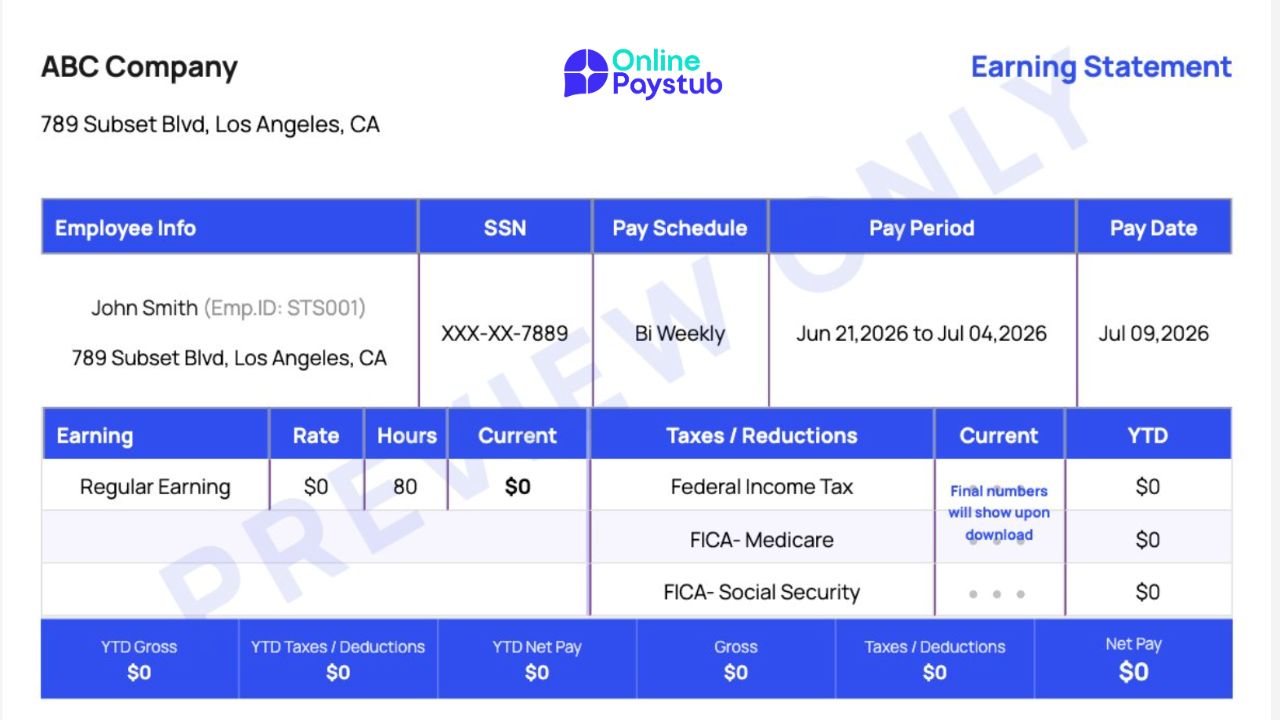
Every pay stub, regardless of the employer or payroll software used, is built around five core sections. Here's exactly how they lay out on a real stub:
1. Company & Statement Header
At the very top, you'll find the employer's name and address alongside the document title ("Earning Statement" or "Pay Stub"). This confirms which company issued the payment.
2. Employee & Pay Period Info
A row of fields identifies who the stub belongs to and when it covers:
- Employee Info: name, employee ID, and address
- SSN: usually masked, showing only the last 4 digits (e.g., XXX-XX-7889)
- Pay Schedule: weekly, bi-weekly, semimonthly, or monthly
- Pay Period: the exact date range worked (e.g., Jun 21 – Jul 04)
- Pay Date: the date payment was actually issued
3. Earning
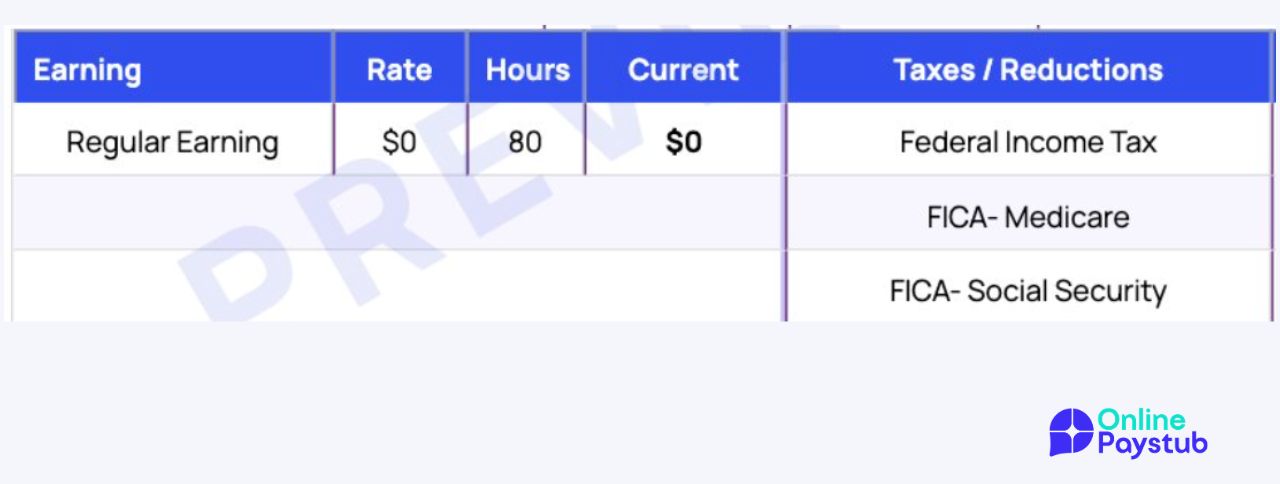
This table shows how gross pay was calculated:
- Rate: hourly wage or salary rate
- Hours: hours worked in the period (e.g., 80 for a bi-weekly salaried employee)
- Current: the gross amount earned this period
Hourly employees may see multiple rows here (regular hours, overtime), while salaried employees typically see a single "Regular Earning" line.
4. Taxes / Deductions
Right next to earnings, this table lists everything withheld from gross pay, with both the current period amount and the YTD (year-to-date) total for each line:
- Federal Income Tax
- FICA: Medicare
- FICA: Social Security
- State and local taxes (where applicable)
- Voluntary deductions like health insurance or 401(k), if offered
5. Summary Bar
At the bottom, a totals bar ties everything together for both the current period and the year-to-date:
Net pay is always calculated the same way:
Gross Pay − Taxes − Deductions = Net Pay
Having both the current-period and YTD figures side by side makes it easy to spot a payroll error early and to reconcile your final paystub of the year against your W-2.
Sample Paystub Breakdown
Let's walk through a real example the way you'd actually build it with a pay stub generator: a salaried employee paid monthly, working remotely for an employer registered in another state.
Setup:
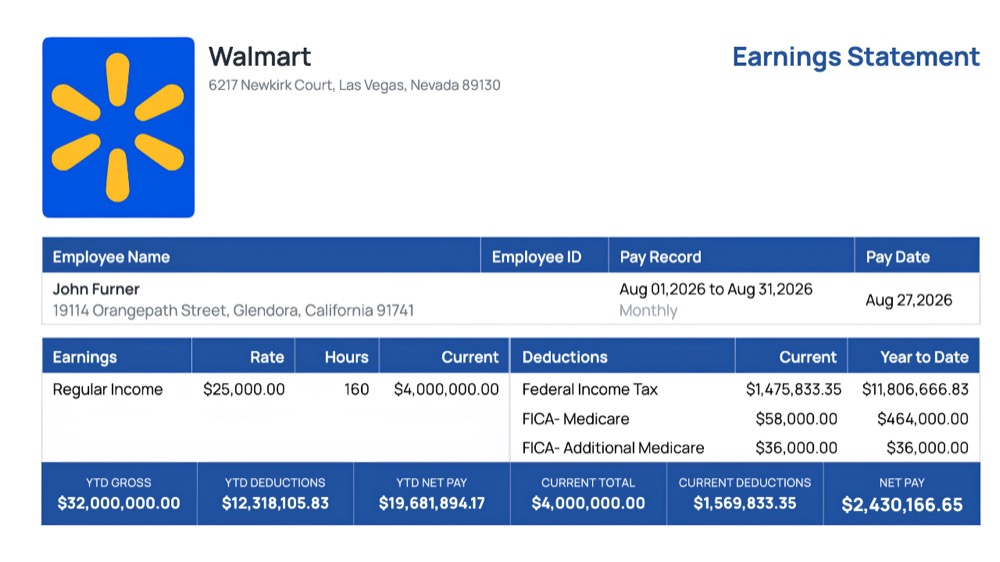
- Employer: Walmart, 6217 Newkirk Court, Las Vegas, Nevada 89130
- Employee: John Furner, 19114 Orangepath Street, Glendora, California 91741
- Pay type: Regular Income at a rate of $25,000.00 per hour
- Pay schedule: Monthly (160 hours per period, no overtime)
- Pay period: Aug 01, 2026 to Aug 31, 2026 | Pay date: Aug 27, 2026
- Employee ID: left blank (optional field)
- Employee address: Glendora, CA (the employee's home address, used for the employee section of the stub)
- Company address: Las Vegas, NV (the employer's registered address, shown in the header)
- Direct deposit slip: not added
Two details matter more than they look at first glance:
- Employee address vs. company address: this stub shows a Nevada employer paying a California-based employee. When the two are in different states, the state selected during setup decides which state-level lines (income tax, SDI) appear on the stub, so it is worth double-checking that choice before generating.
- Year-to-date position: this is the eighth pay period of the year. Where the employee stands against annual wage caps changes which deductions still apply, which is why the Social Security line behaves differently here than it would on a January stub (more on that below).
| Rate | Hours | Current | |
|---|---|---|---|
| Regular Income | $25,000.00 | 160 | $4,000,000.00 |
| Current | YTD | |
|---|---|---|
| Federal Income Tax | $1,475,833.35 | $11,806,666.83 |
| FICA - Medicare | $58,000.00 | $464,000.00 |
| FICA - Additional Medicare | $36,000.00 | $36,000.00 |
| YTD Gross | YTD Deductions | YTD Net Pay | Current Total | Current Deductions | Net Pay |
|---|---|---|---|---|---|
| $32,000,000.00 | $12,318,105.83 | $19,681,894.17 | $4,000,000.00 | $1,569,833.35 | $2,430,166.65 |
A few things worth noticing in this example:
- Gross pay is simply rate × hours: $25,000.00 × 160 hours = $4,000,000.00. With no overtime, bonus, or commission rows, the earnings table has a single line.
- Federal Income Tax is the largest deduction at $1,475,833.35, roughly 37% of gross. At this income level the entire period falls into the top federal bracket, which is why the percentage is so much higher than on a typical stub.
- Medicare has no wage cap, so the 1.45% line keeps running all year: $4,000,000.00 × 1.45% = $58,000.00 this period and $464,000.00 year-to-date across eight periods.
- Additional Medicare Tax appears as its own line. Once an employee's wages pass $200,000 in a calendar year, an extra 0.9% is withheld on everything above that threshold: $4,000,000.00 × 0.9% = $36,000.00 here.
- There is no Social Security line in the current period. Social Security (6.2%) stops once year-to-date wages reach the annual wage base ($184,500 for 2026). This employee crossed it in January, so the deduction dropped to $0.00 for the rest of the year. Reading a stub means checking not only the lines that are present but also understanding why an expected line is missing.
- YTD figures accumulate with each new stub generated for the same employee across pay dates, which is why they are always equal to or larger than the current-period amount.
A few more setup details worth noting:
- No special tax exemptions were selected, so all standard federal and state taxes apply. If an employee were exempt from something (e.g., a student exempt from FICA in some cases), that line would simply show $0.00 instead.
- California adds SDI (State Disability Insurance) on top of standard state income tax, a detail employees in no-SDI states won't see on their stub, which is why the state selected during setup directly changes which deduction lines appear.
- The direct deposit slip is an optional add-on that appends a detachable section at the bottom of the PDF showing the net pay and a check number, useful if the stub needs to double as a physical record.
- YTD figures accumulate with each new stub generated for the same employee across pay dates, which is why they're always equal to or larger than the current-period amount.
What the Direct Deposit Slip Looks Like
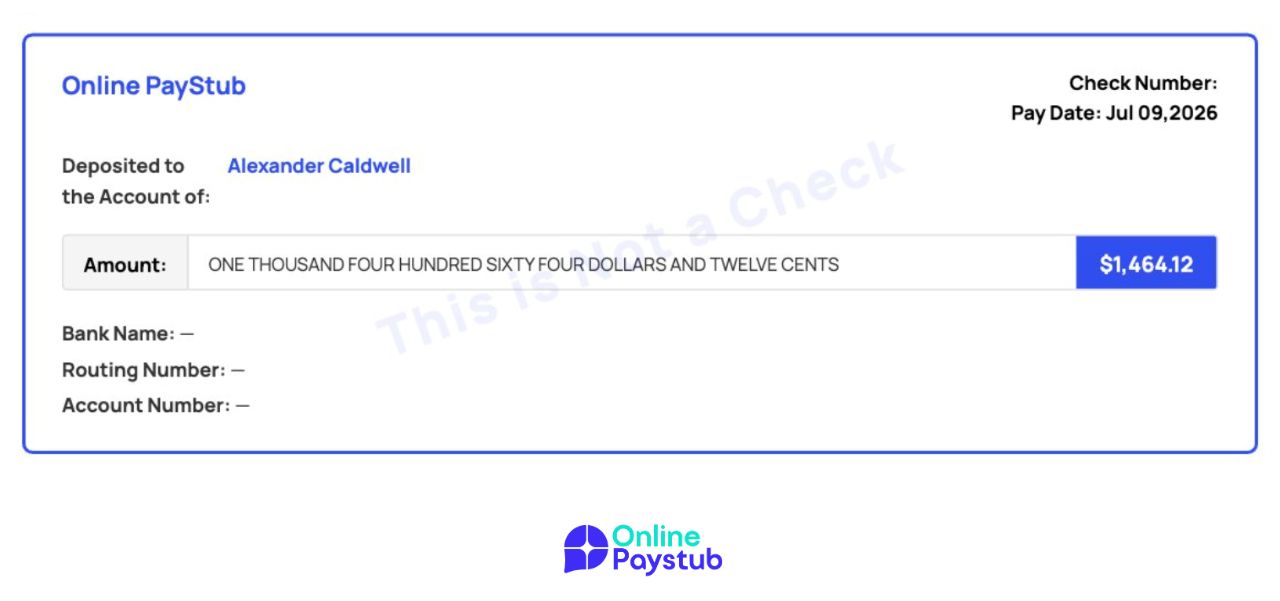
When this option is enabled, a separate section appears below the main stub, marked off by a dashed "cut here" line with a scissors icon — the same convention used on physical paycheck stubs where the check portion detaches from the earnings record. It includes:
- Employer name and a Check Number field (left blank for direct-deposit-only records, since no physical check was issued)
- Pay Date
- "Deposited to the Account of," the employee's name
- Amount shown two ways: the net pay written out in words (e.g., "One Thousand Five Hundred Thirty Dollars and Fifteen Cents") and the numeric figure, matching how a real bank check states an amount
- Bank Name, Routing Number, and Account Number — all optional; if left blank they display as a dash, and if an account number is entered it's masked (e.g., "xxxxxxxx-well")
- A "This is not a check" watermark across the section, since it's a payroll record, not a negotiable instrument
Paper vs. Electronic Pay Stubs
Pay stubs come in two formats:
- Paper stubs physically attached to a printed paycheck. Still required in some states as an option, even if direct deposit is used.
- Electronic (digital) stubs accessed through an online payroll portal or emailed as a PDF. Increasingly the default, since they're faster to distribute and easier to store.
Some states require employers to let employees opt out of electronic-only delivery, so check your state's rules if you're an employer.
Why It Matters to Know What's on Your Pay Stub
Understanding your paystub isn't just about curiosity — it has real practical uses:
- Catching payroll errors: wrong tax withholding or missed overtime pay
- Proof of income: for rental applications, loans, or mortgages
- Tax filing: your YTD totals should match your W-2 at year-end
- Budgeting: knowing your real take-home pay, not just your salary
Need a Pay Stub Fast?
If you're self-employed, a contractor, or your employer doesn't provide stubs, you can generate a professional, accurate pay stub in minutes with our pay stub generator. Just enter your income and deduction details, and get an instant, ready-to-download PDF.
Create your paystub in minutes with the Online Paystub generator.
Create a Pay Stub Now