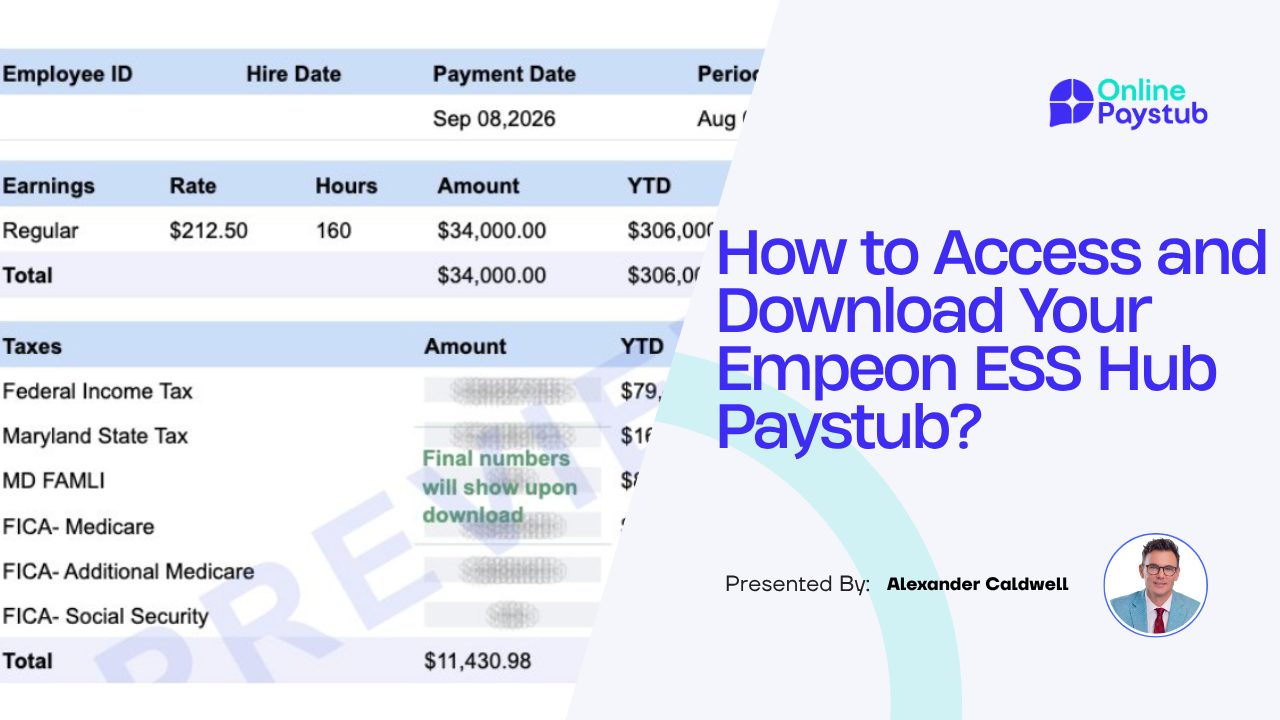

If your employer uses Empeon for payroll, you can see your pay history and download your pay stubs through Empeon Employee Self-Service (ESS) Hub at hub.empeon.com or in the Empeon Hub mobile app.
This 2026 guide covers the Empeon ESS login, first-time registration, where pay stubs sit in the menu, how to download and print them, and what to do when you cannot sign in or have left the company.
What Is Empeon ESS Hub?
Empeon ESS Hub is the employee self-service portal of Empeon, a payroll and HR platform used mostly by healthcare and home care employers. It gives employees access to the payroll, HR and employment information their employer makes available. Not every employer relies on a payroll vendor's portal, though: large retailers often run their own associate sites, which is why a Harris Teeter pay stub comes from MyHTSpace rather than a service like Empeon.
According to Empeon's ESS product page, employees can view pay history, download pay stubs and access year-end documents, including W-2s. Depending on the features your organization has turned on, ESS can also let you:
- View PTO balances and submit time off requests
- View or update direct deposit information
- Maintain your employee profile
- Clock in and out and view your time card
- View schedules and request open shifts
- Access HR documents and company notifications
Direct deposit settings only control where your net pay lands. Whether your wages go to a bank account or to a payroll card, each pay date still produces a pay stub in your pay history.
Empeon says ESS is available 24/7 on PC, Android and Apple devices.
First-Time Empeon Registration: Setting Up Your ESS Account
You cannot create an Empeon account on your own. Your employer starts the process after you give HR or payroll your email address. Based on Empeon's first-time login instructions, registration works like this:
- Open the invitation email. It comes from notifications@em.empeon.com. Select the blue Register Account button.
- Verify your identity. Enter your Social Security number on the secure page and select Verify identity.
- Choose your login email. Confirm the address shown or pick Use a different email address.
- Create a password. It needs at least 6 characters, including 1 uppercase letter, 1 lowercase letter, 1 number and 1 special character.
- Enter your first and last name and select Finish.
- Confirm your email. Look for a message with the subject line "Email Address Confirmation", select Confirm, then Go To Sign In.
Empeon recommends Google Chrome or Mozilla Firefox for registration. Internet Explorer is not supported, so if another browser is your default, copy the Register Account link and paste it into Chrome or Firefox.
Empeon Login: How to Sign In at hub.empeon.com
Once your account is registered, the Empeon ESS login page is hub.empeon.com.
- Open Empeon ESS Hub. Go to hub.empeon.com in Chrome or Firefox. If a welcome slideshow appears, select Skip, then Go to sign in.
- Enter your login details. Type the email or username you registered with in the Email/Username field and your password in the Password field.
- Select Sign In. Complete any extra verification step if you are prompted.
- Open your Home Dashboard. After signing in you land on the Home Dashboard, which shows your profile and your latest pay.
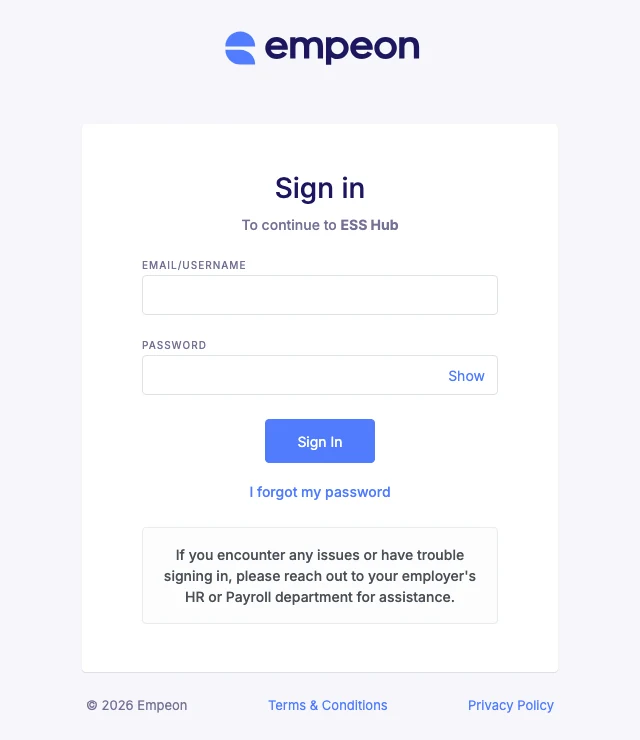
The sign-in page itself notes that if you have trouble signing in, you should contact your employer's HR or payroll department.
How to Find Your Pay Stub in Empeon
Empeon's own instructions describe two places to find pay stubs:
- Latest pay on the Home Dashboard. The Latest pay card shows your most recent net pay and gross pay with a Download button.
- The Paystubs tab. To see pay stubs from previous check dates, select Paystubs in the left-hand menu. The Latest pay card also has a View history link.
The left-hand menu also includes Home, Docs, Profile, Timecard and Time Off, although the items you see depend on what your employer has enabled.
A new pay stub appears in ESS only on or after its check date. If payday has not arrived yet, the stub will not be listed.
What Information Is on an Empeon Pay Stub?
An Empeon pay stub follows the same layout as most US stubs: your details and the pay period at the top, earnings and deductions in the middle and net pay at the bottom. If you already know what a pay stub looks like from a previous job, the Empeon version will feel familiar. The exact fields depend on your employer's payroll setup.
A pay stub may include:
- Employee and employer information
- Pay period and pay date
- Regular earnings, overtime and other earnings
- Gross pay
- Federal, state or local tax withholding where applicable
- Social Security and Medicare taxes
- Benefits and other deductions
- Net pay
- Current and year-to-date (YTD) totals
Tax and deduction lines are usually printed as short codes, such as FIT for federal income tax, SWT for state withholding and OASDI for Social Security. They are some of the most common pay stub abbreviations and appear on Empeon stubs the same way they do on other payroll systems.
Review these figures carefully, especially if you keep the pay stub as part of your personal records. If something looks wrong, contact your employer or payroll administrator rather than changing the document yourself.
How to Download Your Empeon Pay Stub
- Find the check date. Use the Latest pay card for your newest stub or the Paystubs tab for older ones.
- Select Download. The pay stub is saved as a PDF.
- Store it securely. Save the file to a private folder on your device rather than a shared computer.
- Rename it. Use a clear, sortable name so you can find it later.
A date-first name keeps files in order, for example:
Empeon-Paystub-2026-03-15.pdf
Consistent filenames make older payroll records much easier to find at tax time or when a lender asks for recent stubs.
How to Print an Empeon Pay Stub
If you need a paper copy, download the pay stub first and print it from your browser, device or PDF viewer.
- Download the pay stub PDF.
- Open the saved file.
- Select Print from your browser or document viewer.
- Check the print preview.
- Print the document.
Pay stubs contain personal and financial information, so avoid public or shared printers when you can and collect the page right away.
Empeon App: Can You Access Pay Stubs on Your Phone?
Yes. Empeon's mobile app is called Empeon Hub and is available on the App Store for iPhone and iPad and on Google Play for Android. Sign in with the ESS Hub account your employer set up for you. The app is only for employees of organizations that use Empeon.
If you use ESS Hub in a phone browser, the download link can be hidden. Empeon's instructions say to tap the Gross/Summary card of the pay stub you need, and a Download link will appear. If registering or signing in on a phone keeps failing, Empeon suggests using a computer instead.
Can You Access Old Pay Stubs Through Empeon?
Yes, as long as they are still available to your account. Select Paystubs in the left-hand menu to see pay stubs from previous check dates.
How far back your records go depends on your employer's setup and when your employer started using Empeon. If you cannot find an older pay stub, contact your employer's HR or payroll department.
A missing stub in ESS does not mean the payroll record no longer exists. Your employer or payroll administrator may have records that are not shown in your employee account.
Can You Access Empeon After Leaving Your Job?
It depends on your former employer. Your ESS account is set up and controlled by the organization you worked for, not by you, so each employer decides whether former employees keep access and for how long. Empeon does not publish a single rule for former employees.
- Before your last day, download the pay stubs you are likely to need, such as the last few stubs and your final paycheck stub once it posts.
- If you can still sign in, save your final pay stub and check the Docs section for year-end documents when they become available.
- If your access has ended, ask your former employer's HR or payroll department for copies. Under the Fair Labor Standards Act, employers must keep payroll records for at least three years, according to the Department of Labor's recordkeeping fact sheet.
- For your W-2, the employer that paid you still has to issue one for the wages you earned before leaving, even if you can no longer sign in. If it has not arrived by early February, you can still get your W-2 from a previous employer by requesting it from payroll directly or asking the IRS for help.
Can You Get Your W-2 Through Empeon ESS?
Yes. Empeon lists access to year-end documents, including W-2s, as an ESS feature. They appear once your employer makes them available to your account, and the Docs section of the left-hand menu is a good place to look.
Your W-2 is different from a pay stub. A pay stub covers the earnings and deductions of a single pay period, while Form W-2 reports your wages and taxes withheld for the whole year. Any employer that withholds income, Social Security or Medicare tax from your wages must file one for you, according to IRS guidance on Form W-2.
If you cannot find your W-2 in ESS, contact your employer or payroll department. Your employer is responsible for providing the official wage statement.
Empeon Login Problems and How to Fix Them
Most Empeon login problems fall into a handful of scenarios.
You forgot your password
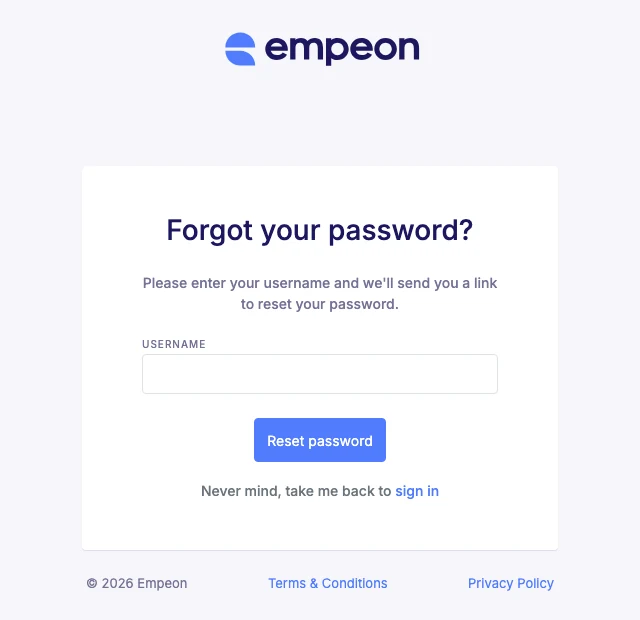
On the sign-in page, select I forgot my password. The reset screen asks for your username, not just your email, and sends a reset link after you select Reset password.
The reset or registration email never arrives
Empeon account emails come from notifications@em.empeon.com. Check your spam or junk folder and, in Gmail, the Promotions tab. If you registered with a work email, ask your IT team to allow mail from that address. If nothing arrives, confirm with HR which email address is on file for you.
Your account is locked or your login is not recognized
If repeated attempts fail or your account appears locked, stop retrying and contact your employer's HR or payroll department. Empeon's sign-in page directs sign-in problems to your employer, and only your employer can confirm your username, update your email address or reactivate your access.
The site will not load after you sign in
- Use Google Chrome or Mozilla Firefox. Internet Explorer is not supported.
- Make sure your computer or phone clock shows the correct time. Empeon notes that ESS will not load after login if the device clock does not match the actual time.
- Clear your browser cache for at least the last 7 days, then sign in again.
You left the company
If your login stopped working after your last day, the account has most likely been deactivated by your former employer. Resetting your password will not restore it, so contact that employer's HR or payroll department for copies instead.
What If Your Empeon Pay Stub Is Missing?
Before contacting your employer, check:
- That the check date has arrived. A new stub appears only on or after its check date.
- That you are looking in the Paystubs tab, not only at the Latest pay card
- The pay date and pay period you selected
- Whether the paycheck has already been processed
- Whether other recent pay stubs appear normally
If the stub is still missing, contact your HR or payroll administrator.
What If Your Empeon Pay Stub Has an Error?
If your Empeon pay stub shows incorrect earnings, hours, deductions or taxes, report it to your employer or payroll department. Do not edit a downloaded pay stub yourself. Your employer needs to correct the underlying payroll record.
Keep the original pay stub and any messages about the correction. If you believe you were not paid wages you are owed and your employer does not resolve it, the U.S. Department of Labor's Wage and Hour Division explains how to file a wage complaint.
How to Contact Empeon About ESS Issues
For account or payroll problems, contact your employer's HR or payroll department first. Your employer controls your employee record and ESS setup, and Empeon's own sign-in page points employees to their employer for help.
If the problem is technical, your employer can escalate it to Empeon support. When you ask for help, have this ready:
- Your name and your employer's name
- The affected pay period or check date
- A short description of the problem
- Any error message you saw
Never send your password, full Social Security number or banking details in an email or chat message.
Need a Pay Stub for Your Own Payroll Records?
If you are an employer, contractor or business owner who needs to create a pay stub from genuine payroll information, Online Paystub organizes earnings, taxes and deductions into a professional payroll document.
Knowing how to make a paystub correctly matters more than the tool itself: withholding has to be calculated for the right pay frequency, and year-to-date totals have to carry over from one stub to the next. It also helps to confirm what your state expects, because paystub requirements by state differ in which items an employer must show.
Enter accurate employer, employee and payment information, review the details and generate the pay stub for legitimate payroll or recordkeeping purposes.
Online Paystub should not be used to alter Empeon records, recreate earnings that did not occur or produce documents containing false employment or income information.
Create your paystub in minutes with the Online Paystub generator.
Create a Pay Stub Now